This web page provides instructions for Reviewers of futureDecide / ERDP Demo Applications.
As background, please ensure you are familiar with:
[insert references to relevant program or competition guidelines or other documentation]
To access a short 6 minute screencast illustrating the mechanics of doing a review, please click the link below:
MPEG4/Quicktime Version: ReviewerDemo.mov
[Note to DEMO users: While most reviewers will be able to navigate the platform intuitively, we provide comprehensive customized instructions for most services in a format similar to those found below. The Demo is modelled on a program that seeks to fund pilot projects that reduce the environmental footprint of public sector operations. The platform is easily customizable to handle a wide variety of Applications, Proposals, Projects, Procurements, Tenders, Strategic Options, or other subject matter that is the focus of an important decision. For additional detail, including information about the features relevant to Program Administrators, please visit the documentation site at http://docs.futureInnnovate.net. Access to the online demo is provided under the standard terms and conditions for the online platform.
For an 8 minute tour of the ProgramAdmin Dashboard for the futureDecide / ERDP Demo service as would be used by Program Administrators, please click the link below:
MPEG4/Quicktime Version: ProgramAdmin.mov. Note that we have recently transitioned from using a BenchmarkAction.com domain name to a futureInnovate.net domain name. At present, the linked videos refer to BenchmarkAction.]
Section 1. How to Register as a Reviewer
To register as a reviewer, please follow the following 5 steps.
Step 1.1: Access Registration Link
Click on the “Online Reviewer Registration” link below:
Online Reviewer Registration (will open in a separate window)
[Note to DEMO users: you do not need to register as you should use the testReviewer2 account as indicated below.]
Step 1.2: Select registration action and enter email address
If you already have an account on the futureInnovate platform, click on “Add this subscription to my existing account”.
If you are setting up a new account, click on “Set up a new account for a first-time user”
If you have already registered as a reviewer and wish to update your reviewer data, click on “I am already registered as a reviewer for this service but wish to update my reviewer data”.
Enter your email address in lower case where prompted.
If you are registering as an administrative user, in addition to specifying one of the actions above, you should also click on “I am registering as an admin user”
Click “Next” to proceed.
Step 1.3: Supply additional user information as requested
For a new account, you will be asked to provide your name, phone number, organization name (company, institution or government department), and specify a password of your own choosing. Passwords must be a minimum of 8 characters, and must include at least 1 upper case character, one lower case character, and one numeral.
Step 1.4: Review and accept Terms and Conditions
You must signify your agreement with the Online Terms and Conditions in order to proceed further.
Step 1.5: Additional Reviewer Information
If you are registering as a reviewer, you will be asked to identify your role (policy expert, technical expert, financial / business expert, etc.). You may also be asked a series of questions relating to your areas of expertise, for purposes of matching you to proposals requiring that expertise. All questions on the reviewer registration page require a response. Enter “N/A” if the question is not applicable.
Ensure that you complete the online registration process within 30 minutes. If you are interrupted, the session may timeout and your registration may not be complete.
On completion of the online registration process, you will receive an acknowledgement email. Once you have been assigned proposals for review, your account will be activated by [insert program / competition name] staff and you will be able to login to complete the reviews. You will be notified by email when you have been assigned reviews and your account has been activated.
Section 2. Login and Specify Service
Step 2.1: Login
Login using the following URL:
https://secure.futureinnovate.net (will open in a new window, click the button to login to the futureInnovate platform)
You will need to supply your userid (i.e., your email address) and the password you specified on registration.
[Note to DEMO users: you may login using as the username “testReviewer2″ with password “testReviewer2″. The password is case-sensitive.]
If you have forgotten your password, you may retrieve it using the Lost Password Utility.
Step 2.2: Specify Service
After logging in, select “futureDecide / ERDP Demo Review and Admin”. On the subsequent screen you will see these Instructions again. Click “Next” to proceed to the Main Menu.
On the Main Menu, you may:
- Specify a larger font size
- Specify the language (English or French) in which you wish to carry out the review
As a security measure, your session will timeout after 30 minutes of inactivity from the time you last clicked a “Next” button. If your session times out, you will need to logout and login again. In addition to inactivity, timeouts can also be caused by an interruption in network connectivity. You should save your data regularly by clicking “Next”. While your data is saved incrementally each time you click “Next”, there is no automatic save feature on timeout.
To help avoid timeouts:
- After 10 minutes of inactivity, the platform will display minutes remaining until timeout near the top of the browser page
- After 20 minutes of inactivity, the platform will popup a warning alert. Click “OK” to reset the session timer to 30 minutes
- After a timeout, the platform will popup an alert advising you to save any unsaved text input to your clipboard before you re-initiate the login process.
All navigation should be done using the buttons at the bottom of your screen or from displayed hyperlinks. You may encounter inconsistent results if you use your browser’s “Forward” or “Back” buttons.
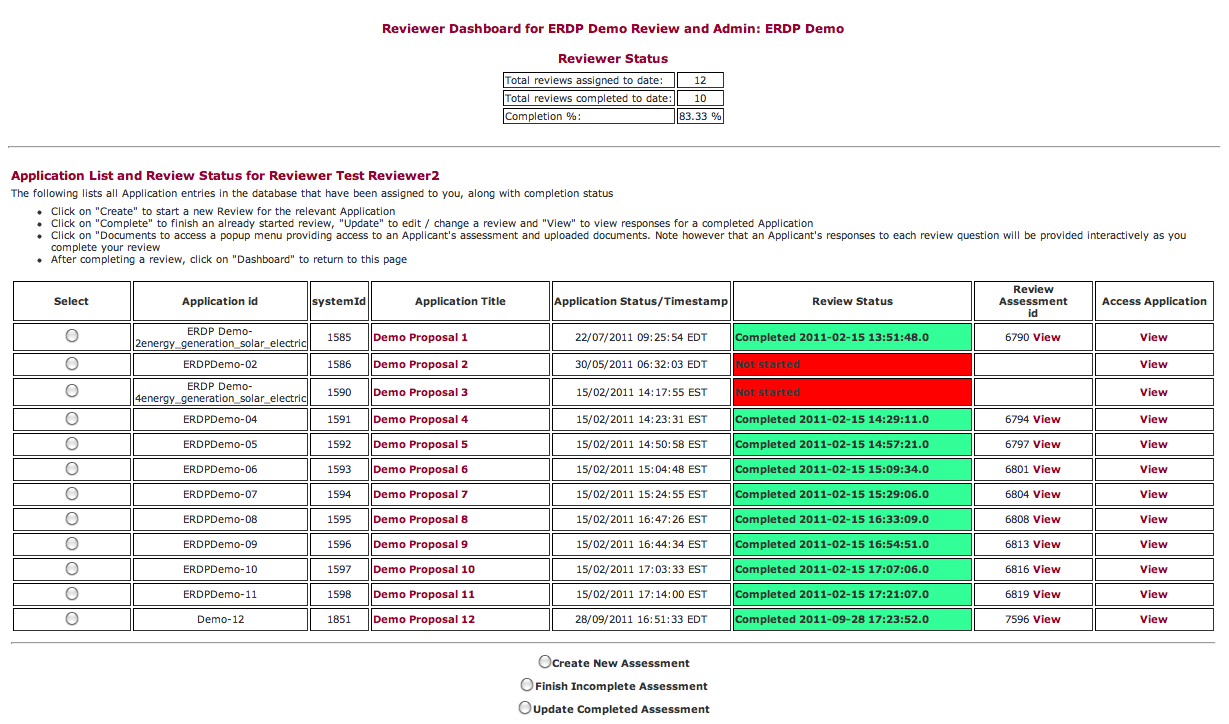 Section 3: Reviewer Dashboard
Step 3.1: Access Reviewer Dashboard
On the Main Menu, you will see a selection button for the Reviewer Dashboard. Click the button and then click “Next”.
The Reviewer Dashboard will be similar to that depicted opposite. It provides a list of all of the Applications you have been assigned to review. It includes buttons for:
- Starting a new review assessment
- Completing an incomplete review assessment
- Updating a completed review assessment
The Reviewer Dashboard, and the subsequent screens, are designed to provide Reviewers with all of the information they need to carry out a review without the need to print documents or to consult multiple documents.
Step 3.2: Prepare for conducting a Review
At the right side of the listing of Proposals, you will see a “View” link. Clicking that link will open a popup window that provides full access to the entire content of the Application. Prior to starting a review, you should scan the document to gain a general familiarity with its contents. If you wish, you can leave this document open on your desktop while carrying out the review. This may not be necessary, however, since the platform will alert you to the specific information you need related to each of decision criteria as you proceed through the review, and a similar popup link appears on each subsequent screen.
All popups windows are resizeable, typically by grabbing the lower right corner with your mouse and dragging to the size you prefer.
Section 4: Complete a Review Assessment
Step 4.1: Completing a Review Assessment
From the Reviewer Dashboard, select the Application you wish to review by clicking the appropriate radio button on the left side of your screen. Then select “Create New Assessment” at the bottom of the page, and click “Next”.
The subsequent screen will confirm the information about the Review you are starting. Click “Next” to start the assessment.
The subsequent page will present the first of the decision criteria. The left side of the screen provides access to information provided by the Applicant. At the top left is the Applicant’s response to the Review Question from the Part 4 self-assessment. The bottom left provides a set of Correlation and Upload Links. These context-sensitive links are intended to enable a reviewer to access relevant information from the Applicant’s submission. In addition you will find a link to open up the full set of Applicant responses.
The right side of the screen states the relevant decision criterion and provides a “language ladder” with four possible responses. Use the pull-down menu to select the response that best expresses your opinion of the Application in relation to the relevant criterion (options A, B, C, D with D being the highest score).
In the comment box below, provide a short commentary explaining your rationale for your selection. These comments are an essential aspect of a complete review.
Click “Next” to move to the subsequent question. Your inputs are incrementally saved to the database each time you click “Next”.
After responding to each of the review questions, you will see a screen that lists the criteria along with links to enable you to review or edit your responses. Click “Next” to move to the “Overall Comments” page. On this page, please provide a short set of comments conveying your overall opinion of the Proposal. Click “Next” a final time to save your comments and conclude the Review. When a review is complete, a “View” link appears in the Review Assessment Id column. This will open a popup screen that enables you to check your responses.
Step 4.2: Finish or Update a Review
While working on a Review, you may logout at any time. Alternatively, you may be interrupted by a phone call and your session might time out. To resume a Review from where you left off, login, proceed to the Reviewer Dashboard, select the relevant Application, select “Finish Incomplete Assessment” at the bottom of the page, and click “Next”. After viewing the confirmation page, you will be taken to the first unanswered decision criterion.
Having completed a Review, if you wish to edit or update any of your responses, login, proceed to the Reviewer Dashboard, select the relevant Application, select “Update Completed Assessment” at the bottom of the page, and click “Next”. After viewing the confirmation page, click “A1. Decision Criteria” on the subsequent screen. You will then see a page with links to the review questions and your Overall Assessment. Select the item you wish to update, make your changes, and click “Next” to save your update to the database.
All completed review assessments will be considered final as of the due date for completion of reviews.
If you have started or completed a review and wish to start over, select the Application on the Reviewer Dashboard, select “Create New Assessment”, and click “Next”. When you click “Next” on the confirmation page, a system alert will appear that will inform you that an assessment already exists. If you do not wish to overwrite that assessment, click “Menu” to return to the Main Menu. Otherwise, click “Next” and the previous assessment will be overwritten so you can start again from the beginning.
A few minutes after you complete a review, you should receive a confirming email.
Support
This section provides contact information for technical support provided by futureInnovate / BenchmarkAction.
For technical assistance associated with the Online Service, contact support@benchmarkaction.com.
To help us respond quickly to your issue, please ensure that the phrase “Demo Help” appears in the subject line of your email. In your support request, please indicate, by reference to the above instructions, the specific step with which you are having difficulty, and include any error messages or system alerts. Solutions to common issues may be found on futureInnovate’s Frequently-Asked Questions site.