Quick start / Table of Contents
Overview and General Information: This section provides an overview of the online submission process for futureDecide / ERDP Demo Applications and general information about using the futureDecide / ERDP Demo Application Service.
[Note to DEMO users: We are currently transitioning from using a BenchmarkAction.com domain name to a futureInnovate domain name. At present, these instructions refer to BenchmarkAction. While most users will be able to navigate the platform intuitively, we provide comprehensive customized instructions for most services in a format similar to those found below. The Demo is modelled on a program that seeks to fund pilot projects that reduce the environmental footprint of public sector operations. The platform is easily customizable to handle a wide variety of Applications, Proposals, Projects, Strategic Options, or other subject matter that is the focus of an important decision. For additional detail, please visit the documentation site at http://docs.futureInnnovate.net. Access to the online demo is provided under the standard terms and conditions for the online platform. ]
1. Registration: This section provides step-by-step instructions on registering to use the futureDecide / ERDP Demo Application Service. [Note to DEMO users: you do not need to register as you should use the testUser2 account as indicated below.]
Step-by-step detail || Online Registration
2. Logging in: This section provides step-by-step login instructions for the futureDecide / ERDP Demo Application Service.
3. Entering your Application content: This section provides instructions to enable an applicant to complete a futureDecide / ERDP Demo Application. The Application consists of four parts. Each part must be completed separately. With responses prepared in advance, the entire Application including Parts 1 through 4 can normally be completed online in about 30 minutes.
Step-by-step detail || Advance detail on Parts 1-4 Required Inputs
4. Reviewing your draft completed Application: You may obtain a PDF copy of your draft Application for review by you and your colleagues.
5. Reviewing and Submitting your FINAL completed Application: This section describes the final steps for submitting the Application.
Support: This section provides email links to program staff and technical support.
This web page provides instructions for completing and submitting a futureDecide / ERDP Demo Application. In sum, there are five steps, each of which is described in a separate section.
- Registering for the futureDecide / ERDP Demo Application Service [not required when using a demo account: see Section 1]
- Logging in to the futureDecide / ERDP Demo Application Service (see Section 2)
- Entering your Application content (see Section 3)
- Reviewing your draft completed submission (see Section 4)
- Reviewing and Submitting your final completed submission (see Section 5)
As background, please ensure you are familiar with:
[insert references to relevant Program documentation]
To access a short 6 minute screencast illustrating the mechanics of submitting an Application, please click the link below:
MPEG4/Quicktime Version: UserDemo.mov
General Information about using the futureDecide / ERDP Demo Application Service
Submission Deadlline: All Applications must be submitted no later than [submission deadline time], on [submission deadline date] (deadline not functional for Demo service).
- No Application submissions will be accepted after the submission deadline. The platform clock is synchronized to the National Research Council official time clock and will not process submissions after this date and time.
- Submissions are final. NO updates or changes can be processed after clicking the “Submit” button on the “Review and Submit” page.
- Your Application will NOT be accepted or reviewed until you have completed Step 5.1.
Applicants must note that online services can experience systemic delays, particularly before a submission deadline if a large number of users attempt to finalize submissions simultaneously. It is solely the Applicant’s responsibility to ensure that Applications are submitted on time; late submissions will not be accepted.
futureDecide / ERDP Demo Application Required Inputs: To assist you in preparing to enter your application data, click here to access complete details on the futureDecide / ERDP Demo Application required inputs. (opens in a separate window).
Browser: For optimum performance, the futureDecide / ERDP Demo Application Service should be used with a reasonably up-to-date standards-compliant web-browser. Javascript must be turned on. Best viewed with screen resolution of at least 1024×768.
Email configuration: In order to ensure that you receive all emails from the online platform in connection with your Application, ensure that your email client and any related spam filters are set to enable receiving emails from the following addresses:
- support@benchmarkaction.com
- noreply@benchmarkaction.com
Navigation: Use the “Next”, “Previous” and other navigation buttons at the bottom of each page rather than the back or forward buttons on your web browser.
Timeouts: As a security measure, your session will timeout after 30 minutes of inactivity from the time you last clicked a “Next” button. If your session times out, you will need to logout and login again. In addition to inactivity, timeouts can also be caused by an interruption in network connectivity. You should save your data regularly by clicking “Next”. While your data is saved incrementally each time you click “Next”, there is no automatic save feature on timeout.
To help avoid timeouts:
- After 10 minutes of inactivity, the platform will display minutes remaining until timeout near the top of the browser page
- After 20 minutes of inactivity, the platform will popup a warning alert. Click “OK” to reset the session timer to 30 minutes
- After a timeout, the platform will popup an alert advising you to save any unsaved text input to your clipboard before you re-initiate the login process.
Text input: Where the Application requires a text input, applicants should use a word processor to prepare responses in advance so that the pre-prepared responses can be pasted into the appropriate textboxes when completing the online forms. This is important because, as noted above, your session will “timeout” after 30 minutes of apparent inactivity. Attempting to compose the detailed text responses online may result in exceeding the timeout limit. The platform has no way of knowing that a user is actively working on a page, other than when a user actively communicates with the platform by clicking a “Next”, “Previous”, or “OK” button.
Word limits: In cases where a word count limit is specified for an input response, the platform will display an approximate word count, which is calculated based on the number of spaces and line breaks in your text input. The word count is updated based on keystrokes or clicking on the page after pasting in text. Web browsers may calculate the word count differently depending on their implementation of javascript and your browser word count may differ from the word count calculated in your word processor. The word count provided by the platform is therefore a guide only. Applicants are responsible for ensuring that their Application content is not excessive in relation to the suggested word count guidelines.
Resuming work on an Application: If you are not able to complete the Application in a single online session, at any time you may logout, and your input to the last time you clicked “Next” will be saved automatically. You can return later and continue as described in Step 3.6.
Working with multiple Applications: If you have registered more than one Application associated with the same user account, do not allow two people to log into the same user account working simultaneously on different Applications. When working with more than one Application associated with the same user account, work on only one Application in a single online session. When you wish to switch to working on a different Application, logout out and login in again.
Checking Completion Status: The Main Menu includes a “Status Summary” option. At any time, you may select this and click “Next” to view a summary of the completion / submission status of each Application associated with your user account, and obtain draft or final submission pdfs if these have been generated.
Online Platform Terms and Conditions: Applicants should note that they remain bound by the terms, conditions and other requirements of the [insert Program / Competition name], and the terms and conditions for the online platform.
Section 1. Registration to use the futureDecide / ERDP Demo Application Service
[Note to DEMO users: you do not need to register as you should use the testUser2 account as indicated in Section 2 below. The following instructions are included to illustrate the normal registration process]
A person who wishes to submit an Application must register as a user of the a futureDecide / ERDP Demo Application Service and must also register each Application they plan to submit.
Registration is a 2-3 minute process and has two parts. The first part (User Registration) involves creating a user account and subscription for the futureDecide / ERDP Demo Application Service. The second part (Application Registration) involves setting up basic information about your Application. Once you have completed User Registration and Application Registration for the first time, you only need to repeat the Application Registration process if you wish to create and submit an additional Application.
Step 1.1: Access Registration link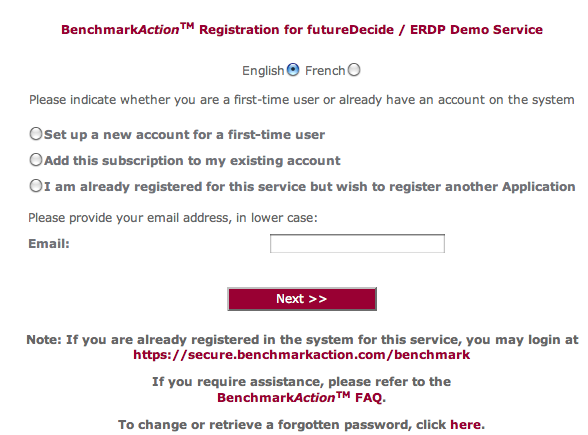
To begin, click on the following Online Registration link:
Online Registration (will open in a new window)
Step 1.2: Select registration action and enter email address
If you are setting up a new user account, click on “Set up a new account for a first-time user”.
If you already have an account on the futureInnovate / BenchmarkAction platform (for example, if you have previously used the platform in any other capacity), click on “Add this subscription to my existing account” and enter your email address.
If you have already registered one Application but wish to register another one, click on “I am already registered for this service but wish to register another Application”. You may also use this procedure to register a first Application if the initial registration process was not completed.
Enter your email address in lower-case where prompted
Step 1.3: Supply additional user information as requested
For a new account, you will be asked to provide your name, phone number, company name, and specify a password.
We recommend that email addresses and passwords be specified using lower-case letters only, since passwords in particular are case-sensitive. Provide a secure password that includes both letters and numerals and is at least 8 characters in length.
Step 1.4: Review and accept Terms and Conditions
You must review the terms, conditions and other requirements of the [insert Program / competition Name], and the terms and conditions for the online platform, and signify your agreement in order to proceed further.
Step 1.5: Application Registration
You will be asked to provide additional registration information about your organization and Application, including specifying a name for your Application and a short description of approximately 15 words or less. You will be notified onscreen and via email when registration is complete.
Ensure that you complete the registration process within 30 minutes. If you are interrupted, the session may timeout and your registration may not be complete.
Unless you are registering an additional Application as described above, you only need to complete the registration process once. On subsequent visits, login as described below.
Section 2. Login and Specify Service
Step 2.1: Login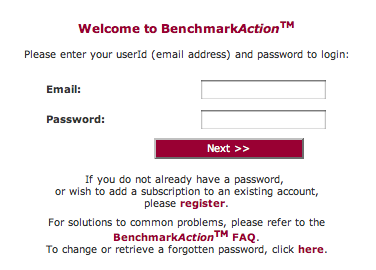
Login using the following URL:
https://secure.benchmarkaction.com/benchmark (opens in a new window)
You will need to supply your userid (i.e., your email address) and the password you specified on registration. Passwords are case-sensitive.
Note to DEMO users: you may login using as the username “testUser2” with password “testUser2”. The password is case-sensitive.
Ensure that you use the above URL to login. If you set a bookmark for subsequent logins, ensure that your bookmark contains only the URL specified above. Your login bookmark should not contain other parameters after “https://secure.benchmarkaction.com/benchmark”.
Step 2.2: Specify Service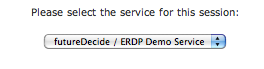
After logging in, use the pulldown menu to select the “futureDecide / ERDP Demo Service”. If you are only subscribed to one active service, this will be pre-selected.
On the subsequent screen you will see these Instructions again. Click “Next” to proceed to the “Main Menu”.
Section 3: Entering your Application content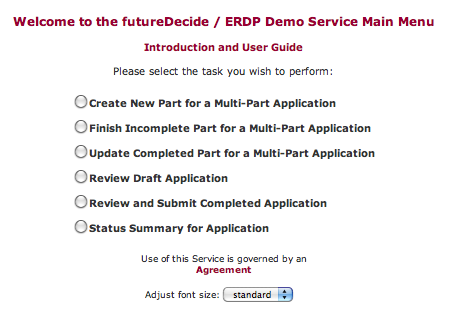
The Application is completed in four Parts. All Parts must be complete in order to submit your Application (see Step 5.1). Each Part must be “created” and completed separately.
- Part 1: Identification has 18 inputs
- Part 2: Details has 14 inputs
- Part 3: Impact estimates has 51 inputs
- Part 4: Decision Criteria has 6 inputs
To assist you in preparing to enter your responses, click here to access complete details on the futureDecide / ERDP Demo Application required inputs. (opens in a separate window).
Begin from the Main Menu, as depicted opposite. On the Main Menu, you may specify a larger font size. Font size selections made here will also affect font size in PDF files that are generated for purposes of reviewing your draft Application prior to final submission.
Step 3.1: Complete Part 1: Identification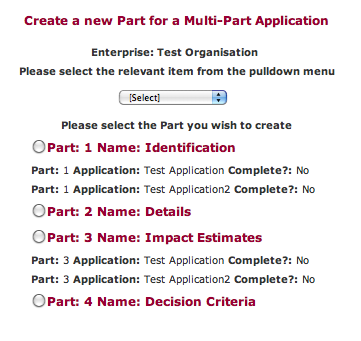
From the Main Menu, select “Create New Part for a Multi-Part Application”. On the subsequent page depicted opposite, use the pull-down menu to select the Application Name specified on registration. Click “Part 1”, and then click “Next”.
Part 1 questions will all be presented on a single page. After responding to all Part 1 questions, click “Next” to save your data and return to the Main Menu.
Step 3.2: Complete Part 2: Details
From the Main Menu, select “Create New Part for a Multi-Part Application”. On the next page, use the pull-down menu to select the Application Name specified on registration. Click “Part 2”, and then click “Next”.
Part 2 questions will each be presented individually on a single page. The response to each question is saved when you click “Next” to move on to the next question. Depicted opposite is the screen for the first question.
After providing all Part 2 inputs, click “Next” to return to the Main Menu.
Step 3.3: Complete Part 3: Impact Estimates
From the Main Menu, select “Create New Part for a Multi-Part Application”. On the next page, use the pull-down menu to select the Application Name specified on registration. Click “Part 3”, and then click “Next”.
Part 3 questions will appear in logical groups. The response to each set of questions is saved when you click “Next” to move on to the next set of questions. Depicted opposite is the screen for the first question.
Some Part 3 questions may appear conditionally. If you are informed that the inputs on a specific page are not relevant to your Application, click “Next” to move through to the subsequent pages in Part 3.
After providing all applicable Part 3 inputs, click “Next” to return to the Main Menu.
Step 3.4: Complete Part 4: Decision Criteria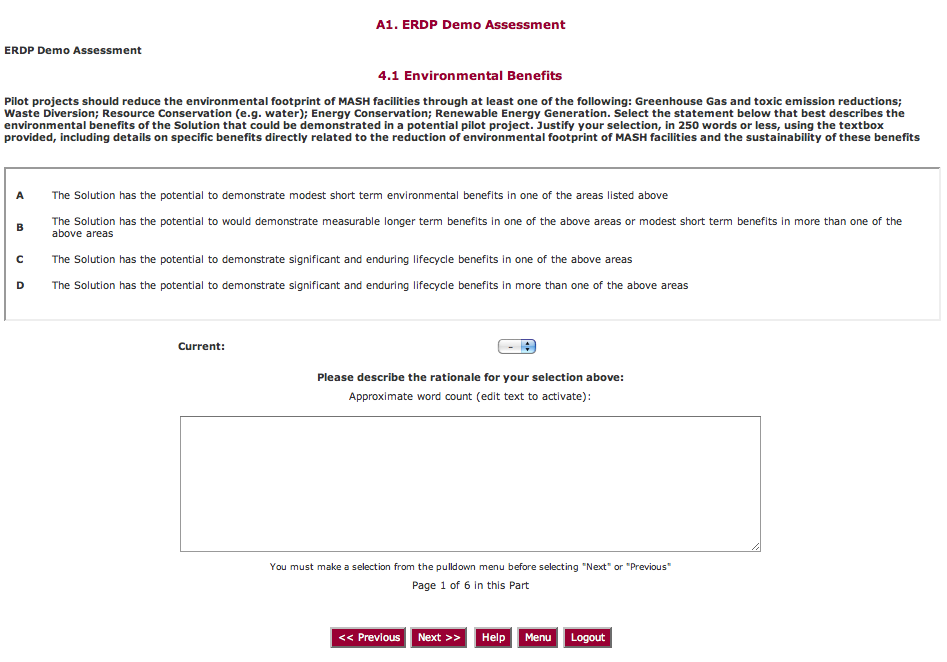
Part 4 of the Application consists of your self-assessment responses related to the Decision Criteria for the futureDecide / ERDP Demo Application. These criteria will be referred to by expert reviewers in evaluating your Application, but the reviewers will provide their own assessments against the criteria. Benchmark statements (termed a Language Ladder) for each criterion form the basis for this evaluation.
The first question in Part 4 is depicted opposite. As a Self Assessment, you select a letter grade using the Language Ladder pulldown opposite “Your Response” to specify the statement that best describes your proposed Application.
The Application requires a justification of approximately 250 words providing your rationale for each response. You are strongly encouraged to prepare these ahead of time in an electronic format that can be pasted into the online form.
Repeat this process for each of the decision criteria.
After providing all Part 4 inputs, click “Next” to return to the Main Menu.
Step 3.5: Complete Part 5: Document Uploads
[Note to DEMO users: Uploads are not included in the Demo: the following instructions are provided for illustrative purposes. Uploads may include documents such as financial statements, CVs, project GANTT charts as are required to support the decision process. If document uploads are required, this section would provide a detailed listing of the relevant requirements. ]
Part 5 of the application process is used for document uploads. Note the following requirements for uploaded documents:
- Each document upload must be a separate file in pdf format, with a size less than 3 MB.
- All uploaded documents must be in “pdf” format with standards-compliant MIME type ‘application/pdf’
- Uploaded documents must NOT be encrytped or locked
- Documents must be uploaded in the order listed, either all at once, or in sequence
You are strongly advised to prepare and process document uploads well in advance of the submission deadline.
[Insert description of required uploads]
To upload a document, click the file selector button opposite the name of the document you wish to upload. This will popup a file selection dialog that will enable you to browse the file system of your computer and select the file to be uploaded. While the filename is not important, as the platform assigns each uploaded file a unique name, the filename must have a .pdf suffix.
You may select more than one file for uploading, or upload files one at a time. If you are uploading files one at a time, they must be uploaded in the order listed above. After selecting one or more files, click the “Next” button. The platform will upload the designated file(s).
After the upload is complete, the page will refresh and display the name of the uploaded file(s), a timestamp specifying the date and time of the upload, and a “View File” link that you can click on to confirm that each file was uploaded successfully.
If you wish to replace an uploaded file with a different version, simply upload the new file in place of the old. The new upload will overwrite the previous upload and will update the database with a new upload timestamp.
If you choose not to provide a required or optional document, select the “document not available” radio button opposite the designated file to inform the platform that no file will be uploaded. If you do not perform this step, the platform will assume that the uploads Part is incomplete, which will prevent you from performing the Review or Review and Submit steps.
After uploading all Part 5 documents, click “Next” to return to the Main Menu.
Step 3.6: Finish or Edit/Update a Part
Finish: If you need to logout before completing any of Parts 1 through 4, you may login again, select “Finish Incomplete Part for a Multi-Part Application” from the Main Menu, then select the Application you wish to complete, and the Part you wish to complete.
Edit/Update: If you have completed any of Parts 1 through 4 and wish to edit your responses, select “Update Completed Part for a Multi-Part Application” from the Main Menu, then select the Application you wish to update, and the Part you wish to update. On the subsequent page, you may select the specific answer or criterion you wish to update. (In the case of Part 3, you must first click on “A1. Part 4 Decision Criteria” to open up the list of criteria.)
Section 4. Review your draft Application
Step 4.1: Review Draft Application
After completing any of Parts 1 through 4, you may optionally choose to generate a PDF version of your draft Application for review purposes. This might be useful to enable you and your colleagues to review your responses prior to the final submission step. From the Main Menu, select “Review Draft Application”. On the subsequent page, scroll to the bottom and click “Next”. The following page will provide a download link to the generated PDF. If on review you need to revise your responses, refer to the update instructions in step 3.6. You may also access review PDF documents from the Status Summary link on the Main Menu.
Section 5. Review and Submit the completed Application
Step 5.1: Review and Submit Completed Application
When all Parts are complete, return to the Main Menu and then select “Review and Submit Completed Application”. Select the name of the Application, and click “Next”.
The platform will not allow an Application to be submitted until all Parts are complete. If you are uncertain whether all Parts are complete, return to the Main Menu and access the Status Summary to view the completion / submission status of all Applications associated with your user account.
If your Application is complete, you will be provided with a page that feeds back all your Application responses. If you need to revise your responses, refer to the update instructions in step 3.6. When you are satisfied with your responses, scroll to the bottom of the “Review and Submit” page and follow the instructions for submitting your Application.
IMPORTANT: DO NOT click “Submit” until you are satisfied that your Application is complete. Once the “Submit” button is clicked at the bottom of the “Review and Submit” page, your Application submission is FINAL. You will not be able to process updates or changes after clicking the “Submit” button on the “Review and Submit” page.
After you click the Submit button, you will be able to download a PDF version of your submission from the subsequent page. You may also access a submission PDF document from the Status Summary link on the Main Menu.
A few minutes after you submit your Application, you should receive an email confirmation, including a timestamp that records the exact date and time that your Application was submitted. If you do not receive such an email, check your spam filters or junk mailbox. If you still do not receive a confirmation email and are unable to access your submission document from the Status Summary link on the Main Menu, contact technical support for assistance.
This section provides contact information for the [insert Program / Competition name] team and Business Case Application Service technical support.
For information about [insert Program / Competition name], contact:
[insert Program / Competition email contact]
For technical assistance associated with the futureDecide / ERDP Demo Application Service, contact:
In your support request, it is important to indicate, by reference to the above instructions, the specific step with which you are having difficulty, and include any error messages or platform Alerts. To help us respond quickly to your issue, insert the phrase “Demo Help” in the subject line of your email. Solutions to common issues may be found on the futureInnovate/BenchmarkAction Frequently-Asked Questions site.
NOTE: Technical Assistance support is restricted to issues associated with mechanics of the on-line platform; specifically, Technical Assistance CAN NOT comment on or provide interpretation of [insert Program / Competition name] Guidelines. All non-technical assistance is to be directed to the [insert Program / Competition name] contact cited above.
Copyright futureInnovate.net, ProGrid Ventures Inc., BenchmarkAction Inc., and MatrixLinks International Inc., 2004-2011. All rights reserved.